The era of “working from anywhere” is here to stay. Local businesses now have employees logging in from home offices in the city, coffee shops, or cabins up in the Rockies. Remote work keeps your business moving, even on snow days. But while flexibility increases, so do security risks.
When workers aren’t behind the office firewall, how to secure your remote workforce lies in a multi-pronged approach: secure the devices (laptops) themselves, secure the connections (VPN or better, ZTNA) they use, and enforce strong identity measures like MFA. Let’s explore how to keep your remote workforce locked down, whether they’re on a kitchen counter in Aurora or a co-working space on 16th Street.
Secure Laptops and Devices
The first step in how to secure your remote workforce is ensuring every laptop or tablet used for work is configured like a fortress. This includes:
- Enabling full-disk encryption: if a device is lost or stolen, data isn’t accessible
- Install reputable endpoint security/EDR software: catch malware or intrusions on that device and managing devices. This also allows you to push updates and policies remotely.
- Utilize tools like Microsoft Intune or other MDMs: this keeps an inventory of devices and ensure compliance (e.g., you might set a policy that a device must have a lock screen and encryption or it can’t access company email).
- Always keep OS and software patched: Remote endpoints are prime targets for attackers, especially when they fall behind on security updates. Unpatched systems leave known vulnerabilities wide open for exploitation. Implement automated patch management to ensure laptops receive critical OS and software updates promptly.
- Encourage (or mandate) that remote workers use company-issued devices: This is important because you control the security on these devices. If employees must use personal devices, consider using virtualization (like publishing a virtual desktop or at least using web apps with MFA) so sensitive data isn’t stored on an untrusted personal machine.
Essentially, treat each remote device as an unmonitored mini-office that needs the same security you’d deploy in-house, just delivered through software and cloud controls.
VPN
Most folks have heard of VPNs (Virtual Private Networks). VPNs create an encrypted tunnel from the remote device back to the office network. Using a VPN is a baseline practice if remote users need to access on-prem file servers, intranet sites, or internal applications. By logging into a VPN, an employee’s internet traffic to company resources travels inside an encrypted tunnel, shielding it from prying eyes on public Wi-Fi.
For example, an accountant working from a coffee shop can connect to the VPN and securely reach the accounting server as if they were in the office, with all data encrypted in transit. VPNs are indeed especially beneficial when connecting over public Wi‑Fi like at cafes or airports because they prevent others on that network from intercepting sensitive data. The VPN tunnel is essentially unbreakable without the keys.
If you have a small number of remote users, setting up a VPN server (built into many firewalls or via a cloud service) is a straightforward win. Just be sure to use strong authentication, no single-factor weak passwords. Ideally, integrate MFA for VPN logins – many VPN solutions support pushing a mobile authenticator prompt.
Traffic Flows
Additionally, configure the VPN so that only the necessary traffic flows through it. This configuration is split-tunneling vs full-tunneling decision:
- For security- choose full-tunnel: In a full-tunnel VPN configuration, all traffic from the remote device (including internet browsing, app traffic, and company resources) is routed through the corporate network. This allows your organization to apply consistent web filtering, threat detection, data loss prevention (DLP), and logging, regardless of where the user is working. It’s the most secure option, ensuring that corporate security controls remain in effect at all times, even when employees are offsite.
- Others- choose split: With a split-tunnel VPN, only corporate-bound traffic (e.g., access to file servers, internal apps, email) goes through the VPN, while everything else (like YouTube, personal browsing, or cloud services) routes directly to the internet. This reduces bandwidth load on the corporate network and improves performance for users, especially when handling video conferencing, large downloads, or cloud app use.
For high-security environments or when dealing with sensitive data, full-tunnel VPN is the better choice. If performance is a major concern and you’re confident in endpoint security (e.g., using strong antivirus, ZTNA, EDR), split-tunnel can be acceptable; but risk must be acknowledged and mitigated. Evaluate what’s safer for you.
Beyond VPN
VPNs have been around forever and work well, but they aren’t foolproof. Once a user is on the VPN, they might access parts of the network they shouldn’t unless your network is segmented. Plus, VPN doesn’t typically inspect what’s happening on that device. If an attacker hijacks the device, they ride through the VPN into the network.
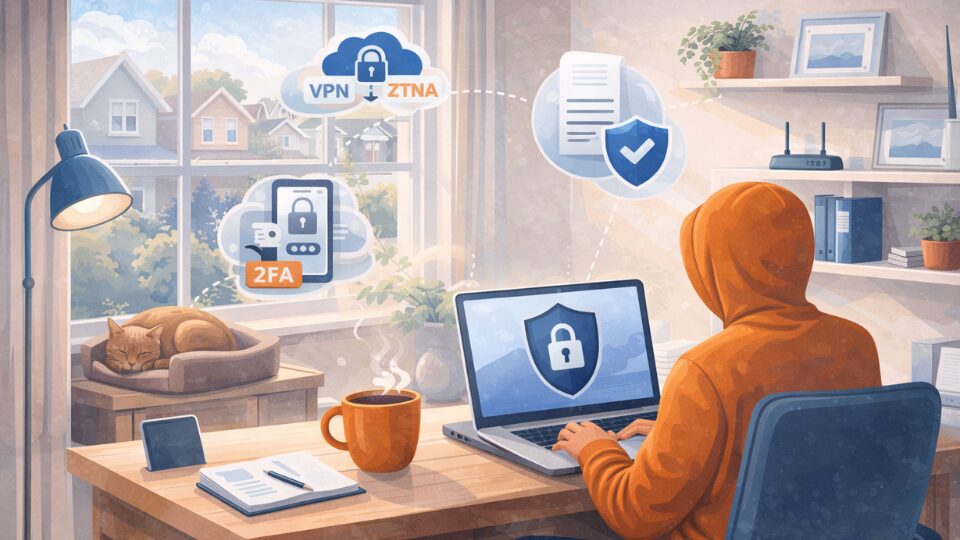
Enter Zero Trust Network Access (ZTNA), the modern approach that many businesses are moving toward to achieve a secure remote workforce. Zero Trust, in a nutshell, means never trust, always verify. Instead of “VPN = you’re inside the castle walls,” zero trust treats every access request separately and checks a lot of factors: user identity, device health, location, etc., before granting minimal required access. Concretely, a ZTNA solution might replace a VPN by having users connect to a cloud-managed portal which then gives them secure access to specific apps (say, your file server or an internal web app) without opening broad network access.
It’s kind of like app-specific VPN that’s smarter. ZTNA is generally more secure than traditional VPNs because it minimizes the network exposure and continuously evaluates trust. However, it’s also more complex to implement and often requires modern infrastructure and dedicated staff or providers to set up properly. Many SMBs in Denver might not jump straight to ZTNA, but it’s worth keeping on the roadmap.
Even so, you can adopt a zero-trust mindset with available tools: for example, using Conditional Access in Microsoft 365 to ensure that only devices that are compliant (say, have AV and encryption) can access cloud resources. That’s a zero-trust principle in action – don’t assume trust just because a login/password was correct; add device trust and policy enforcement.
MFA and Secure Identity for Remote Access
We touched on this but it bears repeating: Multi-Factor Authentication is a must for any remote access scenario (VPN, cloud apps, RDP, you name it). Microsoft reports that 99% of account breaches could be stopped by MFA. Most VPNs can hook into an MFA provider (like sending a push to Azure MFA/Authenticator, Duo, etc.). And obviously for cloud services like Google Workspace, Microsoft 365, Slack, whatever – turn on MFA for all accounts.
Many cyber insurance policies now require MFA for remote network access and key services. It’s one of the most effective security controls, period. Yes, it might add 5 seconds for an employee to accept a phone prompt when logging in from home, but that’s negligible compared to the fallout of a breach.
Also consider contextual access: if your sales staff only works in the USA, maybe flag or block login attempts from other countries. Tools in Azure AD or third-party security can do this. These measures tighten security around identity, effectively creating another wall around your remote workforce.
Secure Remote Collaboration Tools
Remote work relies on tools like Zoom/Teams, cloud file shares, project management SaaS, etc. Make sure those tools are configured securely. For instance, in Zoom, use meeting passwords or waiting rooms. In file sharing (OneDrive/SharePoint or Dropbox), set proper permissions and consider expiring links. Encourage using corporate-approved tools rather than random apps – shadow IT is a risk (employees might use personal Google Drives, etc., which you have little control over).
Regularly remind remote staff of secure usage: e.g., don’t save company files on personal cloud accounts, and use the company VPN or cloud drive instead.
Home Network Hygiene
It might be out of your direct control, but you can give guidance to employees on securing their home Wi-Fi. Simple tips: change default router passwords, use at least WPA2 encryption with a strong passphrase on their Wi-Fi (no open networks at home either), ensure their router firmware is updated (or replace old routers that no longer get updates).
You could even offer to provide or subsidize business-grade small routers for home or at least an annual stipend for them to upgrade to a newer secure model – it’s cheaper than an incident. Some companies go as far as providing a separate “corporate” wireless AP for home workers that tunnels back to HQ – that might be overkill for many SMBs, but the idea is to segment work devices at home to a network not shared with every IoT gizmo the employee owns.
Monitor and Manage Remotely
Deploy tools that allow you to monitor remote endpoints and respond if needed. For example, if an EDR on a remote laptop detects malware, it should alert IT and potentially isolate that machine even if it’s not on prem.
Consider using a cloud RMM (Remote Monitoring and Management) tool. This is something MSPs like us use to keep an eye on updates, logs, and issues on all devices regardless of location. It provides a unified way to push patches and security fixes to remote machines. Without it, those remote PCs might miss critical updates (especially if employees ignore prompts).
Zero Trust Mindset
Ultimately, adopt a mindset that being on the “corporate network” is no longer the default for safety. Instead, treat every access as external and every device/network as potentially hostile. Enforce encryption for all connections (VPN, HTTPS for cloud apps), verify users through MFA, verify device compliance through conditional access or agent checks, limit access rights (just because John in accounting VPNs in doesn’t mean he should reach the engineering file server), and log everything.
Many small businesses are starting with pieces of zero trust even if not a full formal implementation.
How to Secure Your Remote Workforce Overview
By combining these practices hardened laptops, encrypted VPN tunnels or zero-trust gateways, and robust identity verification you create a secure framework for remote work and no longer have to ask yourself “how to secure your remote workforce”.
Cinch I.T. helps clients implement this framework routinely: deploying EDR and patch management on remote laptops, setting up business-grade VPNs or SD-WAN appliances for remote staff, and rolling out MFA across all systems. The result is that your team can work from a coffee shop or a ski lodge with confidence that sensitive data is safe.
Remote work doesn’t have to mean less security; with the right tools, it can actually be more secure than the old days of everyone inside one office on one firewall, because now you’re forced to implement strong measures on every endpoint and connection.
____________________________________________________________________________
FAQ: How to Secure your Remote Workforce Operations
Q. What is the best way to secure remote workforce environments?
A. To secure remote workforce environments effectively, businesses should combine hardened devices, encrypted connections, and strong identity controls. This means deploying endpoint protection (EDR), enforcing full-disk encryption, requiring MFA, and using VPN or Zero Trust Network Access (ZTNA). A layered approach ensures your secure remote workforce strategy protects data whether employees are in Denver, at home, or traveling.
Q. Is a VPN enough for how to secure your remote workforce access?
A. VPN is a strong baseline, but by itself it may not fully secure remote workforce access. Traditional VPNs create encrypted tunnels, but once connected, users may have broader network access than necessary. For stronger protection, combine VPN with MFA, network segmentation, and least-privilege access. Or move toward Zero Trust Network Access (ZTNA).
Q. What is the difference between VPN and Zero Trust for a secure remote workforce?
A. VPN connects users to the network. Zero Trust connects users only to the specific applications they’re authorized to use, nothing more.
Q. Should we use full-tunnel or split-tunnel VPN to secure remote workforce connections?
A. If your priority is security, full-tunnel VPN is typically better to secure remote workforce traffic because all internet activity routes through corporate filtering and monitoring tools. Split-tunnel improves performance but introduces visibility gaps. The right choice depends on your risk tolerance, compliance requirements, and endpoint protections.
Q. Why is MFA critical to secure remote workforce security?
Multi-Factor Authentication is one of the most effective ways on how to secure your remote workforce identities. Even if a password is compromised, MFA adds another verification layer, such as a mobile authenticator push, that blocks unauthorized access. MFA should be required for VPN, cloud apps, email, and any remote administrative access.
Q. Can small businesses realistically secure remote workforce systems?
A. Yes. Even small businesses can secure remote workforce operations by starting with practical steps: company-managed devices, MFA everywhere, encrypted VPN access, and cloud-based monitoring tools. Over time, layering in Zero Trust principles further strengthens your ability on to how to secure your remote workforce infrastructure without requiring enterprise-level complexity.
Q. How can small businesses secure remote workforce employees without enterprise-level budgets?
You don’t need a massive IT department for how to secure your remote workforce effectively. Start with:
- Company-managed devices
- Automated patch management
- EDR protection
- MFA everywhere
- Secure VPN configuration
- Conditional access policies
Managed service providers can bundle these tools into predictable monthly costs, making enterprise-grade protection achievable for SMBs.
____________________________________________________________________________
Sources
Coalition cybersecurity best practices (VPN benefits); Coalition on ZTNA vs VPN for stronger security; Pingzine Zero Trust roadmap (context for remote & cloud dissolving perimeter).
____________________________________________________________________________
About the Author
Niko Zivanovich is a Cybersecurity Leader with experience in helping organizations understand and achieve a more complete security posture. He is a co-owner of Cinch IT of Denver and has been working at Pellera Technology Solutions for 6 years, most recently as the Director of Cyber Defense and Threat Intelligence. Niko specializes in CISO advising, netsec ops, incident response, pen testing, and threat intelligence research. He holds multiple certifications through the SANS GIAC organization and is a Board Director for the InfraGard Colorado and Wyoming Chapter.
Enjoyed the how to secure your remote workforce article? If so then head over to our Blogs for more top tech tips.
Or follow their Linkedln page for weekly tech tips, industry insights, and practical cybersecurity guidance for SMBs.
____________________________________________________________________________
About Cinch I.T.
Founded on the belief that I.T. support should be easy, Cinch I.T. has grown into one of the nation’s fastest-growing managed service providers. Our franchise model blends centralized expertise with local ownership, giving clients the best of both worlds. Our team is committed to being more than just a service provider, we’re your dedicated partner in achieving operational efficiency and peace of mind. With our fast, friendly, and transparent approach, you’ll always know where you stand and you always know you will have wi-fi security.
Discover how Cinch IT can support your success through smarter, more secure technology solutions. Contact us today!
Cinch IT Denver not your nearest location? View our nationwide Cinch I.T. offices: